

Native Direct Integration
Google Sheets Email Verification
Automate contact list hygiene between Bouncify and Google Sheets. Verify subscriber lists in bulk and suppress bounces with one click.
How to Connect and Verify Google Sheets Lists
Follow this step-by-step setup guide to authenticate your Google Sheets account, import your contact lists, run deep multi-stage verification, and export clean subscriber data directly back into Google Sheets.
Connect your Google Sheets account with Bouncify
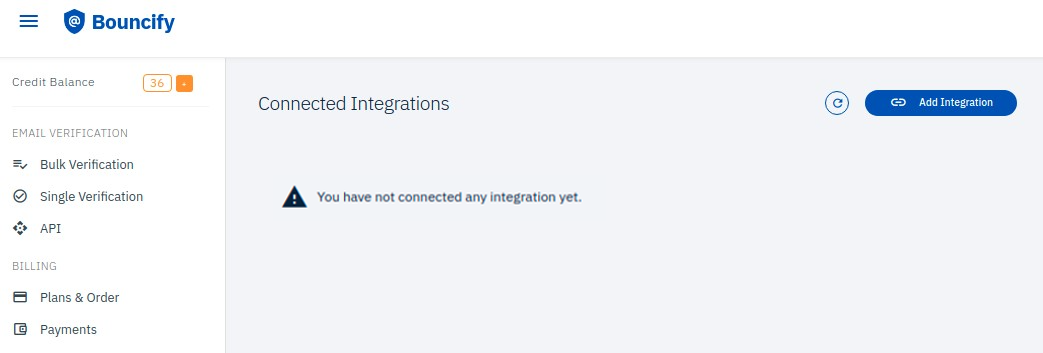
- To begin with this integration, you need to connect your Google sheets account to Bouncify. Login to your Bouncify account and navigate to the “Integrations'' page.
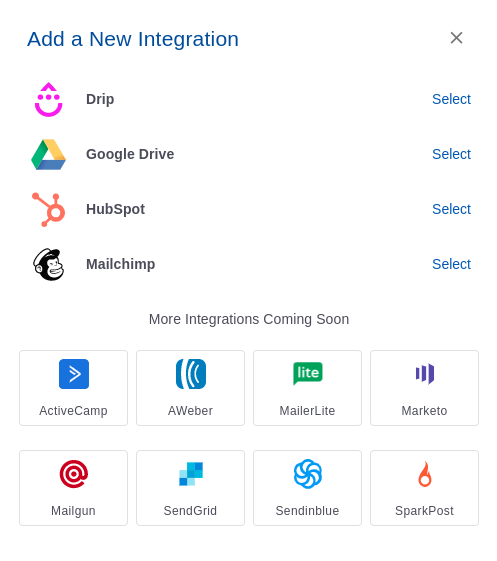
- Click the “Add Integration” button at the top right corner of the page. This will open a popup window displaying a list of apps to integrate.
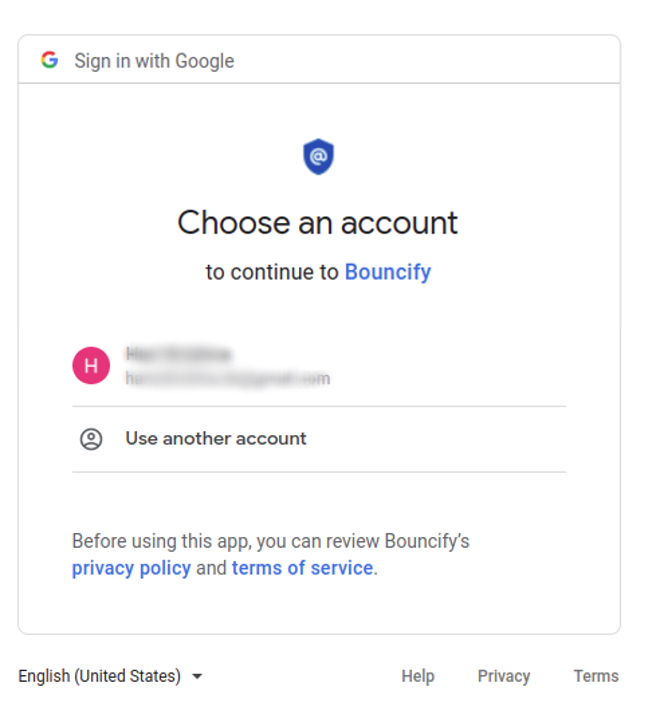
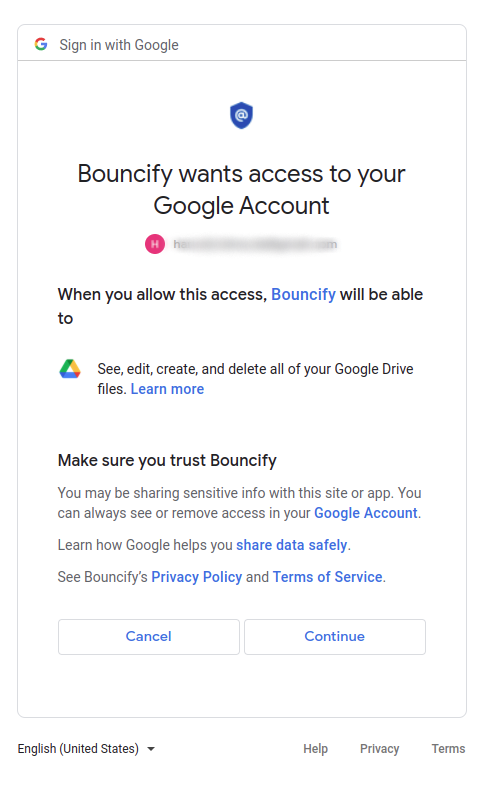
- Select “Google Drive” integration, it will redirect to the Google login page for authenticating your account.
- Click on Continue button to authorize Bouncify Application.
Importing a email list from Google Drive
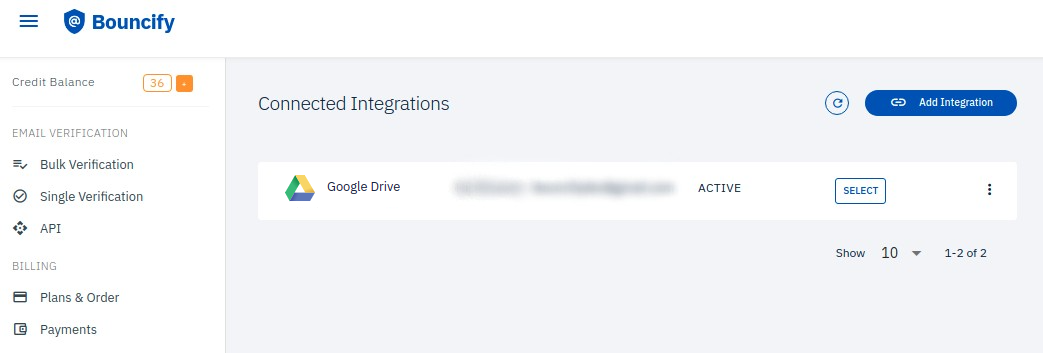
- Once you have successfully connected, your Google Drive integration will be listed in the integration page. Select the Google Drive integration from the Integrations page.
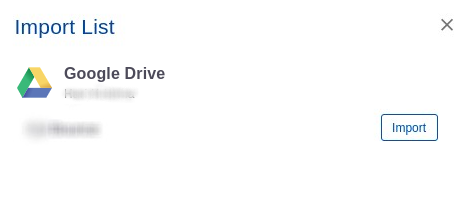
- This will redirect to the Bulk email verification page and a pop-up box appears with your Google Spreadsheets. Select the required Spreadsheet and click “Import” to start importing your list.
Verifying a Google Spreadsheet
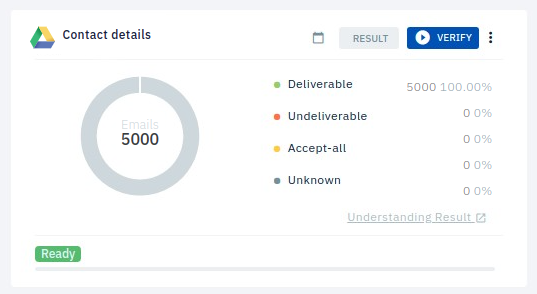
- Once imported, click “Verify” in the top right corner of your list and then click “Clean List” in the pop-up box.
Download your result
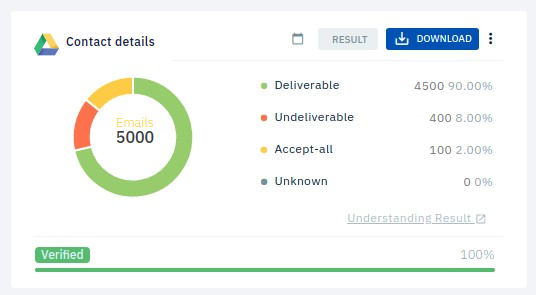
- Once your verification is completed click “Download” at the top right corner of the list. This will open a popup window with the download option.
Disconnecting your Google Sheets account
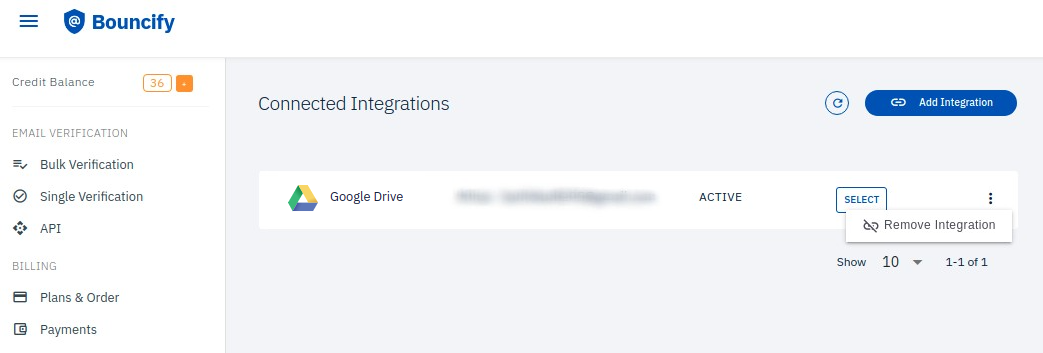
- You can disconnect your Google account. Navigate to the “Integrations” page in your Bouncify account. And select (:) icon at the right side of your Google Drive integration.
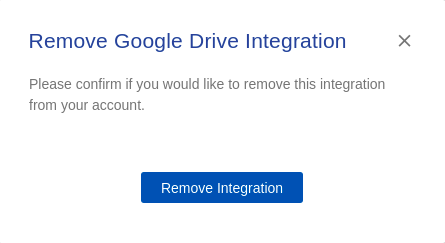
- Then click “Remove Integration”. This will open a pop up window to confirm the disconnect.
Key Advantages of Bouncify + Google Sheets
- Automated Cloud Sync: No CSV downloads or file formatting issues. Contacts transfer securely via authenticated API or OAuth2.
- 99.4% Verified Accuracy: Comprehensive 9-stage verification eliminates invalid emails, spam traps, disposable addresses, and syntax errors.
- Sender Score Safeguard: Automatically suppress bounces and keep your ESP bounce rate safely below 1%, protecting campaign deliverability.
- Credits Never Expire: Pay-As-You-Go verification credits never expire. Use your credits whenever your campaign schedule demands.
Frequently Asked Questions
Click Add Integration, choose Google Sheets, and authenticate with your Google account. Select any spreadsheet from Google Drive containing email addresses.
Bouncify automatically scans your spreadsheet headers and preview rows to identify the column containing email addresses.
Yes. Bouncify appends verification status columns (Result, Reason, Domain, Disposable, Accept-All) so you have full insights for every lead.
Yes. Bouncify only accesses the specific spreadsheet you select using secure Google OAuth2 permissions.